Style the WooCommerce card form
Sign upfor a Stitch Payments account.
The Checkout display section controls branding on the payment form for both classic and Blocks checkout.
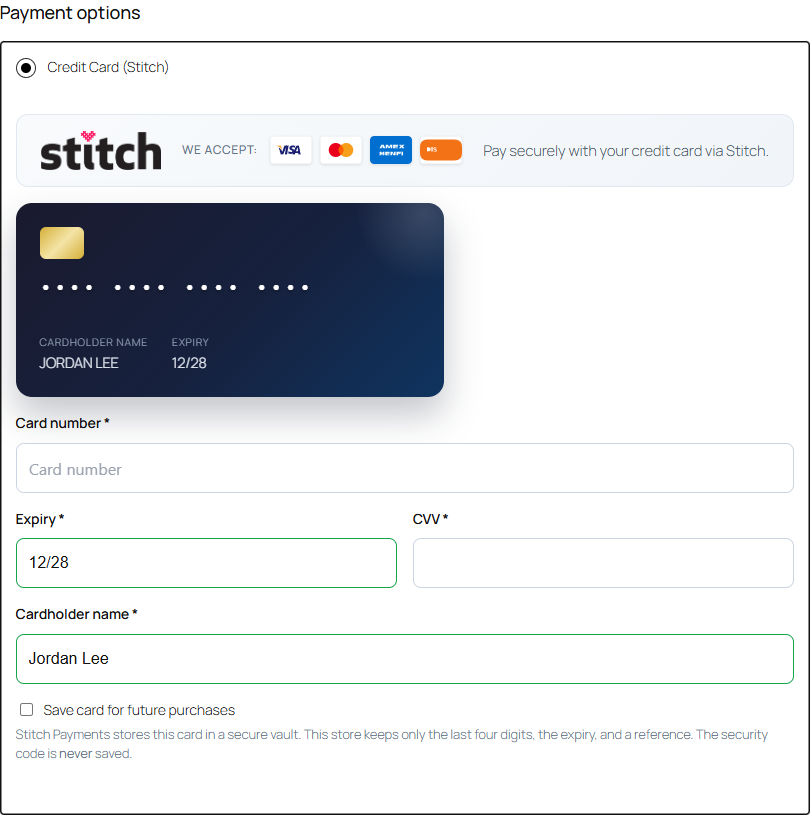
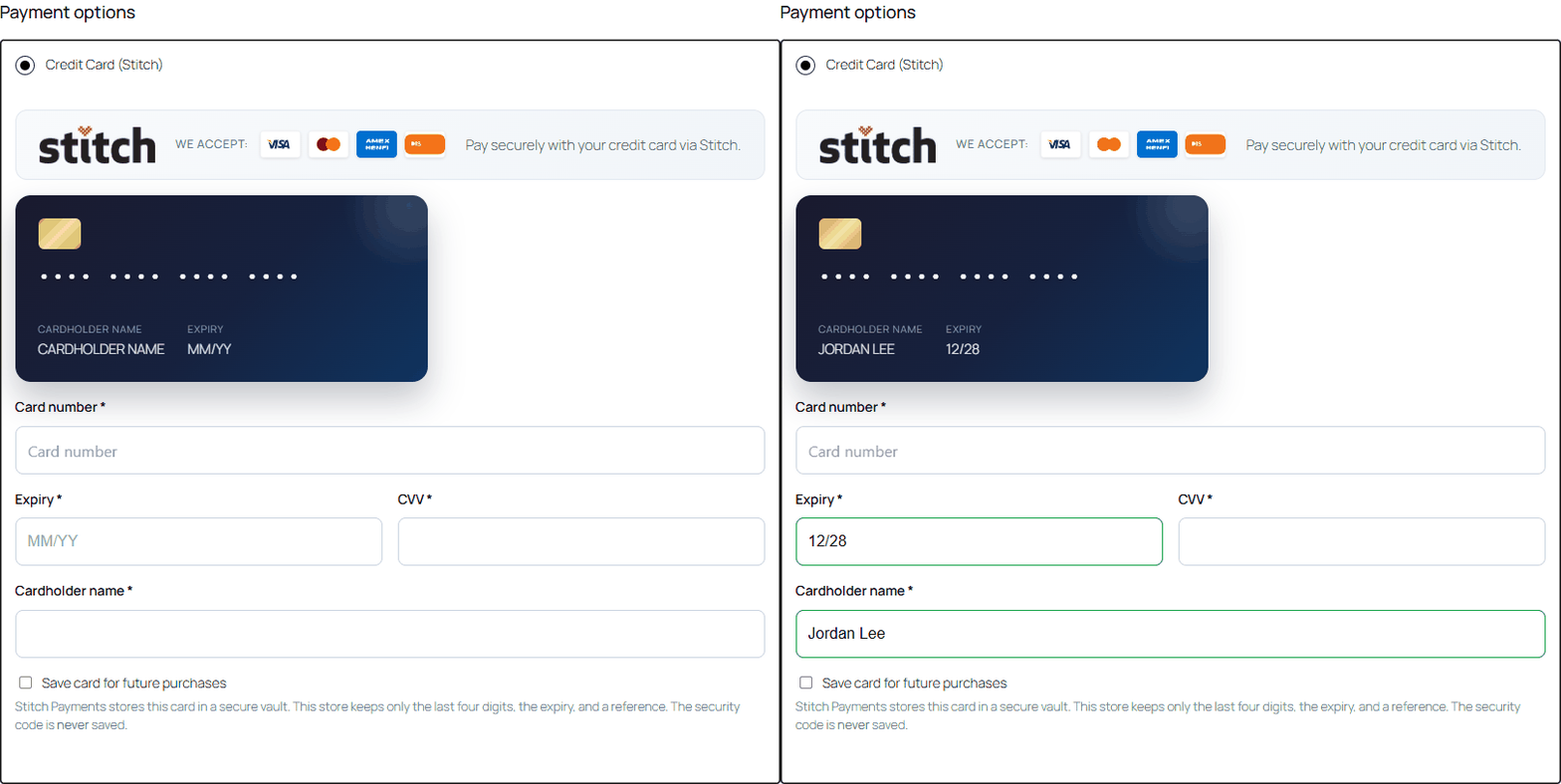
On Blocks checkout the form looks like this. The card number is typed in a CardPointe hosted field, so that box is blank in the picture. The name and expiry update the card graphic.
Checkout style
Since 0.4.0. The Checkout style dropdown switches the payment form between built-in visual presets — no code or CSS required:
| Preset | Look |
|---|---|
| Default | The standard Stitch form: framed header panel, rounded fields |
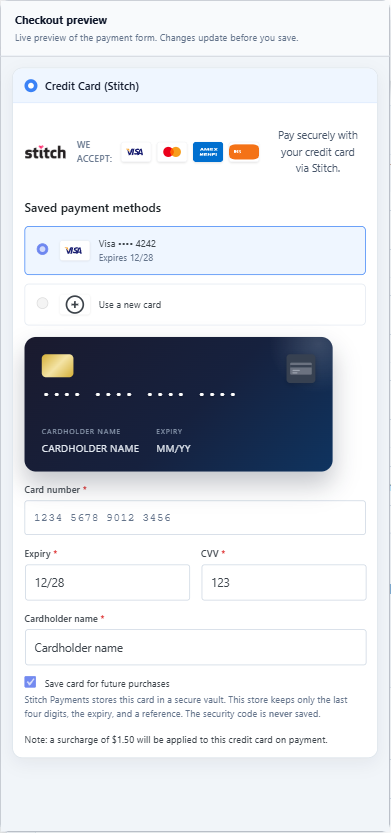
| Minimal | No header panel background, smaller corner radii — blends into lightweight themes |
| Compact | Shorter fields and tighter spacing for dense checkouts |
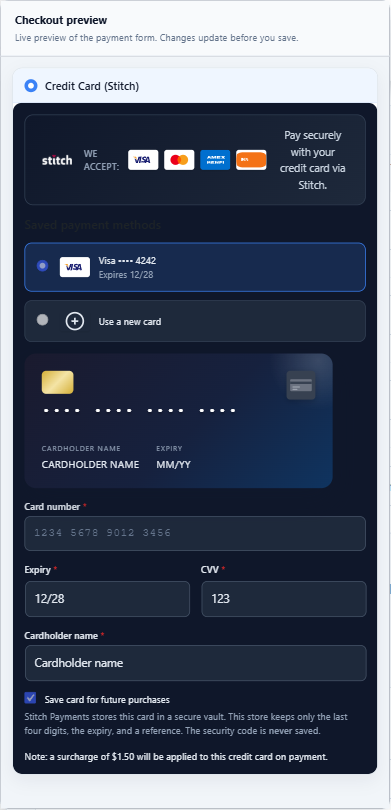
| Dark | The whole form becomes a dark panel with light text and the white Stitch logo — readable on light and dark themes alike |
The preset applies to classic and Blocks checkout, and the card-number field (which is served securely from CardPointe) follows it automatically so the whole form stays consistent.
Dark and Minimal in the settings preview. Both pictures include a sample saved card and a sample surcharge line so the layout is visible before you save. Those amounts are not your live rate, and the Visa ending 4242 is not a real card on file.
Accent color
The Accent color picker overrides the preset's accent — the color used for field focus outlines, the selected saved-card highlight, and the radio/checkbox controls on the payment form. The softer focus-ring and highlight background shades are derived from your color automatically. Leave it blank to use the preset's own accent.
Custom checkout CSS
The Custom checkout CSS box (advanced) appends your CSS after the preset on both checkout types. The most reliable approach is overriding the form's CSS variables rather than targeting selectors:
:root {
	--stitch-radius-sm: 2px;
	--stitch-field-height: 44px;
}
The full variable list is in the developer hooks reference. The CSS is sanitized on save, so it cannot inject markup into the page.
Developers can also register additional presets — see the stitch_payments_style_presets filter.
Live preview
The settings screen includes a Checkout preview panel on the right. As you change options, the preview updates immediately — you do not need to save first. On wide screens the preview stays visible while you scroll through settings.
The preview reflects branding toggles, custom logo URL, field labels, the card preview setting, and — since 0.4.0 — the Checkout style preset, Accent color, and Custom checkout CSS, which restyle the preview live as you type. It does not run live card tokenization (the card number iframe is omitted in admin).
Branding options
| Setting | Description |
|---|---|
| Show Stitch logo | Display the Stitch logo on the payment form |
| Show accepted card icons | Visa, Mastercard, Amex, Discover icons |
| Show payment description | Show the gateway description inside the form |
| Show card preview | Animated card graphic while entering details |
| Custom checkout logo URL | Replace the default logo with your own image URL |
Field labels
Override default labels without code:
- Card number
- Expiry
- CVV
- Cardholder name
Leave fields blank to use plugin defaults.
Theme override (developers)
Classic checkout can also be customized by copying the template to your theme:
your-theme/woocommerce/stitch/payment-form.php
See Customization for developer options.
Checkout field flow
On the storefront, when a customer enters card details, focus automatically moves to the next field after validation succeeds:
- Card number (tokenizer returns a valid token)
- Expiry (
MM/YY) - CVV (3 digits, or 4 for Amex)
- Cardholder name
This behavior is built into the classic checkout script and does not require configuration.
Card brand recognition
Since 0.4.0, as soon as the card number is tokenized, the card brand (Visa, Mastercard, Amex, Discover) is recognized and a small brand icon appears inside the card number field on both classic and Blocks checkout. If Show card preview is enabled, the animated card graphic updates to the same brand. The brand is derived from the secure token — the card number itself never reaches your site — and it also drives the CVV length check (4 digits for Amex, 3 for other brands).
Saved cards store their brand when the card is first saved, so the correct logo appears next to each saved card at checkout and in My Account → Payment methods.
Tips
- Use a square or horizontal logo (PNG or SVG URL) around 120–180px wide for best results.
- Disable Show payment description if the description already appears in the payment method list above the form.
- Show card preview adds a small amount of visual polish; disable it for the simplest layout.
- If accepted card icons do not appear after upgrading, save settings once — icon SVGs are preserved by a dedicated sanitizer in 0.2.0+.